
WHITELIST
How to Whitelist Email from The Social Sales Girls for Gmail, AOL, Yahoo, Hotmail, Outlook, Thunderbird, and Apple Mail
To ensure that all of our membership-related email communication ends up in your inbox and isn’t mistakenly sent to the junk folder, please whitelist the email addresses from which you may receive important training correspondence:
Susan: [email protected]
Our team: [email protected]
Our team: [email protected]
Below is information on how to whitelist us with Gmail, AOL, Yahoo, Hotmail, Outlook, and Apple Mail. Even if your ISP or email program is not listed, with these instructions you should be able to figure out how to whitelist our email address at any ISP or with any email program.
Also, if you find email from any of the email addresses listed above in your spam or junk folder, please take that opportunity to tell your mail program that it is not spam by hitting the “not spam”, “not junk” or similar button, as that will train your program to whitelist it. (NOTE: We used our [email protected] address in the examples below, but the instructions pertain to all of the email addresses listed above!)
Gmail
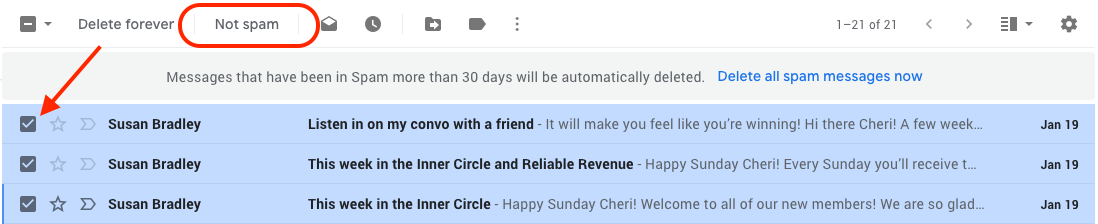
1. First, if you find email from us in your Gmail spam folder, select our email and click the “Not Spam” button
2. Next, open an email that you have received from us
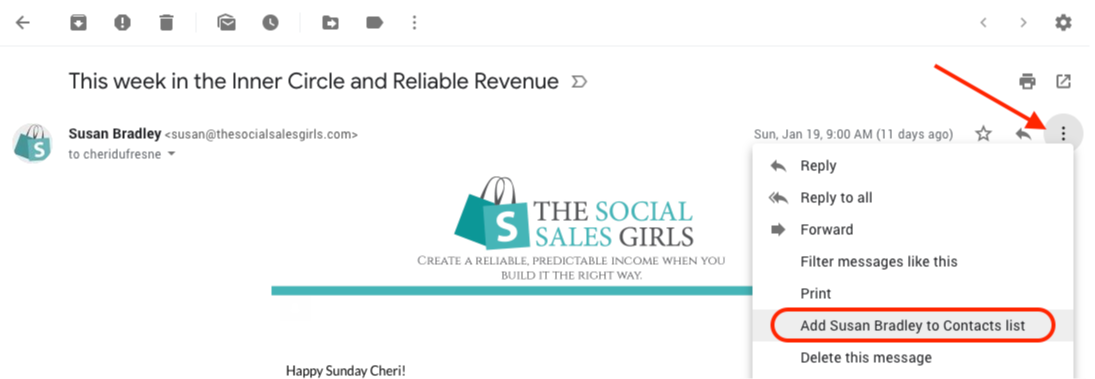
3. Click on the little down-pointing-triangle-arrow next to “Reply”:
4. Click “Add The Social Sales Girls to Contacts list”
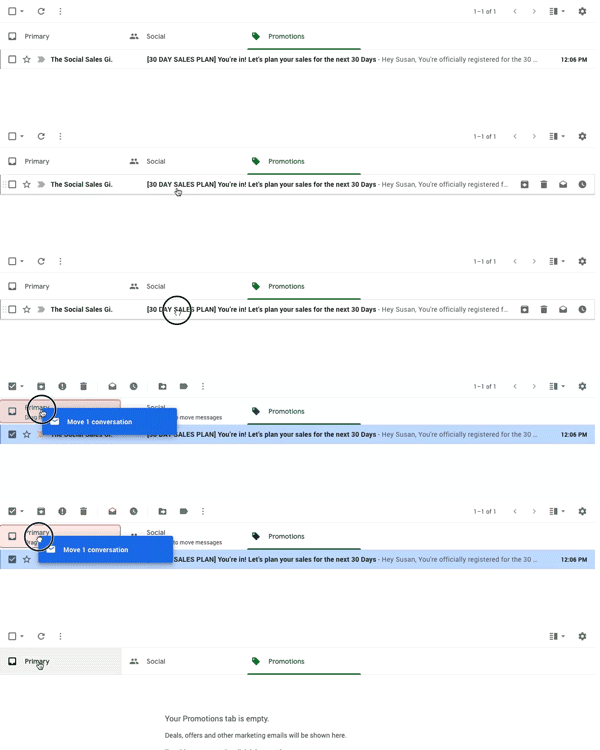
5. If our email is in your Promotions folder, move it to Primary (Inbox)
AOL
To add [email protected] to your AOL address book:
1. Open an email from us and then click the ‘This Is Not Spam’ button
2. Click the Mail menu and select Address Book
3. Wait for the Address Book window to pop up, then click the ‘Add’ button
4. Wait for the Address Card for New Contact window to load
5. Paste [email protected] into the ‘Other E-Mail’ field
6. Make our “From” address, [email protected], the Primary E-Mail address by checking the appropriate box
7. Click “Save”
Yahoo!
To whitelist [email protected] with Yahoo!, you will need to set up a “filter” after first taking the following steps:
1. If you find email from [email protected] is going to your Yahoo! bulk folder, open it and click “Not Spam”
2. Be sure that the address [email protected] is not in your “Blocked Addresses” list. If [email protected] is on your “Blocked Addresses” list, select it and click “Remove Block”
Now to create the filter:
3. Open your mail and click on “Mail Options” in the upper right hand corner
4. Select ‘Filters’ (in the bottom left corner)
5. On the Filters page, click “Add”
6. Select the “From header:” rule, and add “contains” and [email protected], which tells the system to put email with [email protected] in your inbox and not the bulk folder.
7. Click the “Choose Folder” pull down menu and select ‘Inbox’
8. Pick the Add Filter button
Outlook.com
In the new Outlook.com you must click the Wait it’s safe link if you find emails incorrectly identified as spam. Entering the email contact in the address book or contacts no longer whitelists the sender.
To ensure messages from specific email addresses are not sent to your Junk Email folder, you can do one of two things:
1. Check the Junk folder. If you see the [email protected] email in your Inbox
2. Open the email from Susan Bradley…
3. Click the “Wait it’s safe” link
4. Mark Sender as “Wait it’s safe!
Manually Add to Safe List:
1. Click gear the icon on the top right.
2. Select Options in the drop-down list.
3. On the Options page under Preventing junk email click Safe and blocked senders
4. Click the link Safe senders on the next page.
5. Enter the email address [email protected] in the text box.
6. Click Add to list
7. The Social Sales Girls will now be added to your list of Safe senders
8. Emails added to your Safe senders will not be delivered by mistake to your Junk folder.
Microsoft Outlook
1. On the Tools menu, click Options
2. On the Preferences tab, click Junk E-mail
3. On the Safe Senders tab, click Add
4. Add [email protected] where it says “Add address”
5. Click OK
Apple Mail for OS X
1. First, if email from [email protected] ends up in your junk folder, highlight or open it and click “Not Junk” at the top of your screen.
Then:
2. Go to Mail > Preferences from your Mail menu
3. Go to the Rules tab
4. Select Add Rule
5. Give this rule a name such as “The Social Sales Girls”
6. Create a rule that says “If any of the following conditions are met: ‘From’ ‘Contains’” and then paste in “[email protected]”
7. From the actions, select ‘Move message’ to mailbox ‘Inbox’.
8. Click “OK”